SMS Consent
Program description
By providing your mobile number and checking the consent box in your Frequency profile, you agree to receive recurring automated transactional and account-notification text messages from Frequency. These messages relate to your use of the Frequency platform, including:
- Ad campaign vetting requests awaiting your approval or decline
- Reminders and status updates about pending vetting requests
- One-time passcodes to verify your phone number
Example messages
“BetterHelp wants to work with How I Built This. New ad campaign vetting request. Click the link below to respond: cmp.frequencyads.com…”
“New ad production request from Netflix. Click the link below to review.”
“How I Built This declined an ad campaign vetting request from McDonalds.”
Message frequency varies based on your account activity — typically a few messages per week, though you may receive more during periods of high campaign activity. Message and data rates may apply. Consent is not a condition of purchase or of using the Frequency platform.
Opting out: Reply STOP to unsubscribe at any time. After you text STOP, we will send a final message confirming you have been unsubscribed, and no further messages will be sent. You can also turn off texts from your profile or disable individual SMS notification types in your notification settings.
Help: Reply HELP for help, or contact us at support@frequency.media.
Your mobile number and SMS consent will not be shared with or sold to third parties or affiliates for marketing purposes. For details on how we handle your information, see our Privacy Policy.
Opt-in flow
The screenshots below walk through the complete opt-in flow, demonstrating that users proactively choose to receive text messages from Frequency and can opt out at any time.
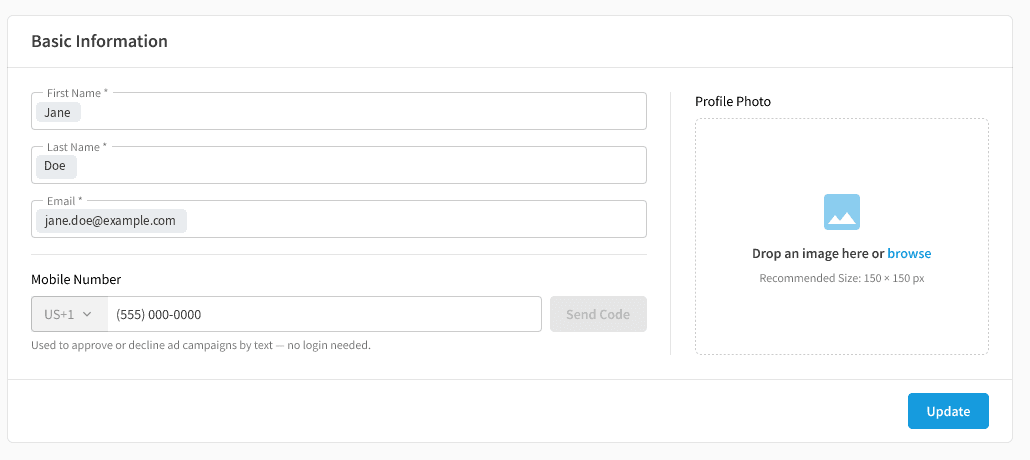
1. Adding a mobile number (empty state)
The mobile number field lives in the user’s profile, below their email, with a country-code selector. Providing a number is entirely optional — no SMS-related fields are pre-filled, and the “Send Code” button stays disabled until a number is entered. Helper text explains exactly what the number is used for: approving or declining ad campaigns by text.
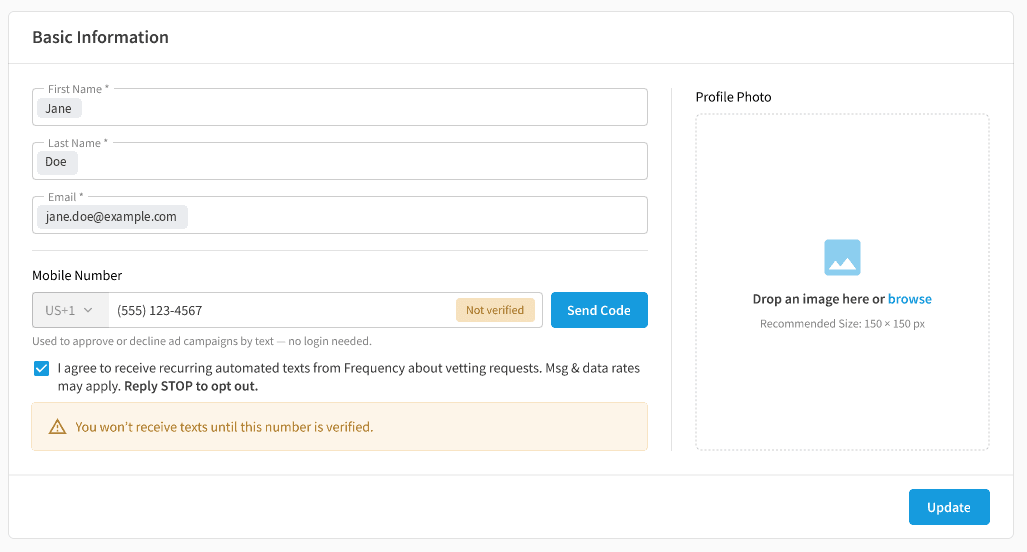
2. Explicit consent (entered, not yet verified)
Once a number is entered, a consent checkbox appears. It is unchecked by default and never pre-checked — the user must affirmatively check it to agree to receive texts. The consent language states that the user agrees to receive recurring automated texts from Frequency about vetting requests, that message and data rates may apply, and that they can reply STOP to opt out. The number is flagged “Not verified,” and a warning makes clear that no texts will be sent until verification is complete.
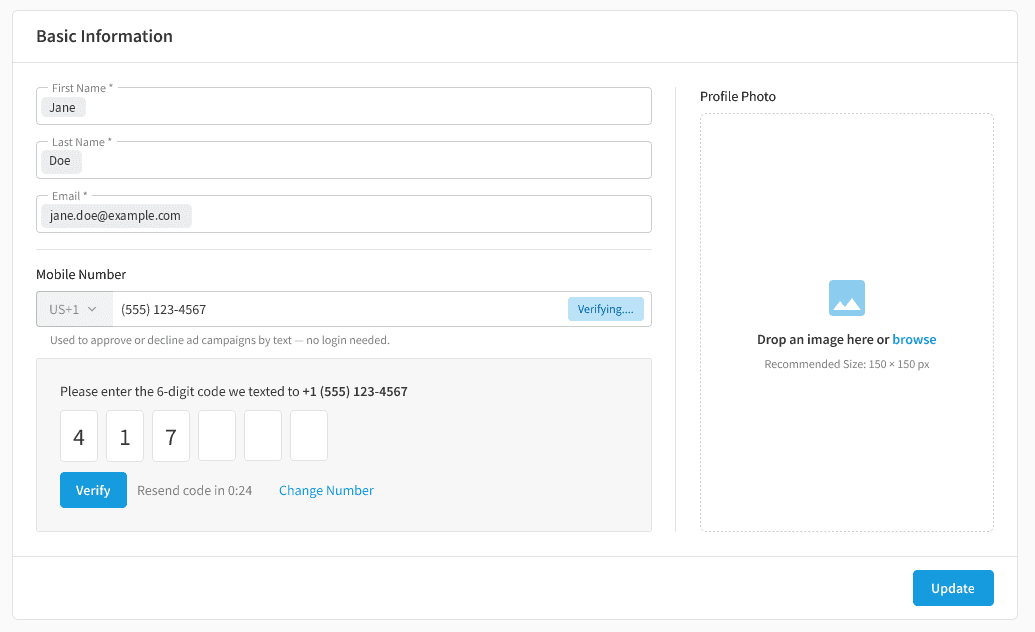
3. Phone verification (one-time code)
Clicking “Send Code” delivers a 6-digit verification code to the number provided. The user must enter the code to prove ownership of the phone number. They can resend the code or change the number at this step. Until verification succeeds, no SMS notifications are ever sent.
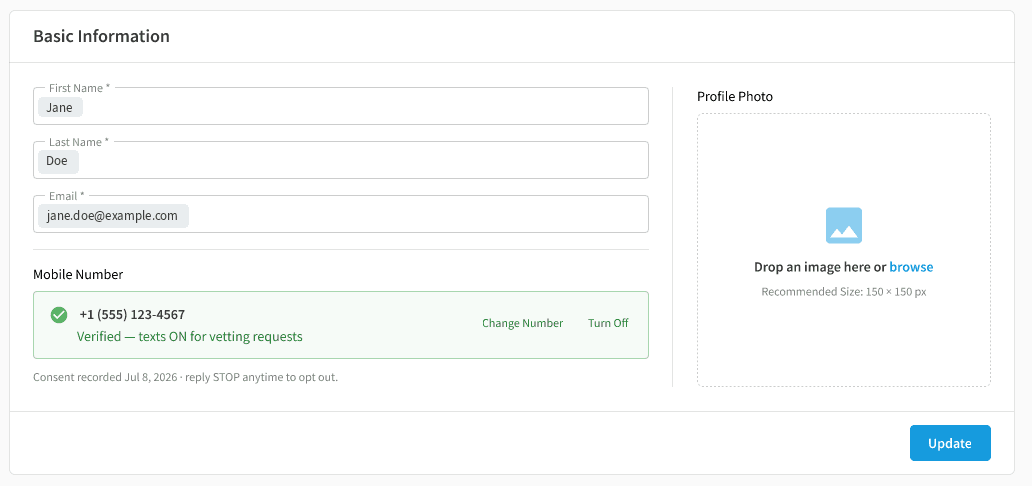
4. Verified number with recorded consent
After successful verification, the number shows a verified state along with the date consent was recorded and a reminder that the user can reply STOP at any time to opt out. The user can also change the number or turn off texts entirely from this screen.
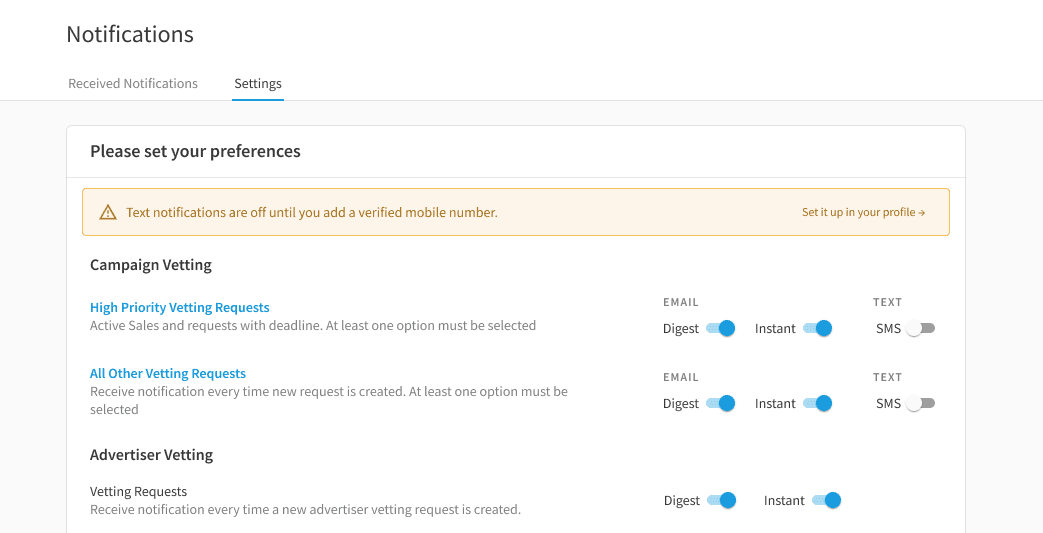
5. Notification settings (granular control)
In Notifications → Settings, SMS is a separate channel alongside email, with per-notification-type toggles that are off by default — verifying a number alone does not subscribe the user to anything they haven’t switched on. If no verified number is on file, an inline warning explains that text notifications are off and links to the profile page to set one up.
Opting out
Users can stop SMS messages at any time by replying STOP to any text, turning off texts from their profile, or disabling individual SMS toggles in notification settings.